This is default featured slide 1 title

Go to Blogger edit html and find these sentences.Now replace these sentences with your own descriptions.

This is default featured slide 2 title

Go to Blogger edit html and find these sentences.Now replace these sentences with your own descriptions.

This is default featured slide 3 title

Go to Blogger edit html and find these sentences.Now replace these sentences with your own descriptions.

This is default featured slide 4 title

Go to Blogger edit html and find these sentences.Now replace these sentences with your own descriptions.

This is default featured slide 5 title

Go to Blogger edit html and find these sentences.Now replace these sentences with your own descriptions.

Showing posts with label Gtalk. Show all posts

Thursday, June 14, 2012

Google Password Recovery


Google   Password  ေတြကုိ   Recovery  လုပ္ေပးမယ့္ေဆာ့ဖ္၀ဲေလး ျဖစ္ပါတယ္ ။    Recovery  လုပ္တယ္ဆိုတာကေတာ့  ျပန္လည္ျပီးေတာ့   ေဖာ္ထုတ္တာပါ။   အခု  Google  Password  Recovery  ေလးဟာ  Gmail ,  Gtalk   အားလံုးရဲ႕  Password  ေတြကိုျပန္လည္  ေဖာ္ထုတ္နိုင္မွာျဖစ္ပါတယ္ ။  အင္တာနက္ဆိုင္ေတြမွာ  ဒီေဆာ့ဖ္၀ဲ ကုိ သံုးတယ္ဆိုရင္    ေတာ့ သတိထားပါ။   ဒါေပမယ့္လည္း ျမန္မာနိုင္ငံမွာေတာ့   အဲ့လိုမ်ိဳး လုပ္တာေတြ မရွိပါဘူး။   ဒီဆိုမ်ိဳးေတြကုိ  နိုင္ငံျခားတို႔၊    ျပီးေတာ့ Hacker  ေတြသာ အသံုးျပဳၾကတာျဖစ္ပါတယ္။   အခုေရးလိုက္တာကလည္း ဗဟုသုတေလး ရေအာင္လို႔ပါ။  တျခား ဘာသေဘာမွ မပါ၀င္ပါဘူး။    ဒီ  Password  Recovery  ေလးက  Google   Password  ေတြကိုပဲ  Recover လုပ္ေပးမွာျဖစ္ပါတယ္။  ဒီေဆာ့ဖ္၀ဲေလးကို  ေအာက္မွာ  Download  ဆဲြနိုင္ပါတယ္။


Download  From  mediafire

Download  From   ifile.it

Tuesday, June 12, 2012

Gtalk Shell


ဒါကေတာ့  Gtalk  မွာပံုေတြ Auto ေျပာင္းေပးတဲ့  Software ေလးပါ . ။  ပံုေျပာင္းတဲ့အခ်ိန္ကိုလည္း ကုိ္ယ္ၾကိဳက္္သလို  ကန္႔သတ္နိုင္ပါတယ္  .  ။  Gtalk  မွာ ပံုေတြခဏခဏေျပာင္းတာကို ၾကိဳက္တဲ့သူေတြေတာ့  ဒီ Software  ေလးကေကာင္းမွာပါ  . ။  Gtalk မွာ  ပံုေျပာင္းတာက  တစ္နွစ္တစ္ခါ။  တစ္လတစ္ခါ၊ တစ္ရက္တစ္ခါ စသည္ျဖင့္ ေန႔အလိုက္ေျပာင္းနိုင္သလို  ၁မိနစ္၊ ၂မိနစ္ ...... ၊  မိနစ္အလိုက္လည္းေျပာင္းနိုင္မွာျဖစ္ပါတယ္. .  Gtalk နဲ႔ဘာမွ မကြာပါဘူး . ။ Shell Button ေလးပဲ အပုိပါလာတာျဖစ္ပါတယ္. . ။  ဒါေပမယ့္  Gtalk Shell  ကုိအခ်ိန္တိုင္းလိုလိုေတာ့  သံုးမေနပါနဲ႔ . ။ ဘာျဖစ္လို႔လဲဆိုေတာ့  Gtalk  ကုိဗိုင္းရပ္စ္ ကုိက္တတ္လို႔ပါ . ။  Account  တစ္ခုလံုးကို ဗိုင္းရပ္စ္ ကိုက္တာ မဟုတ္ဘဲ  Gtalk Shell Software  ကုိပဲကိုက္တာပါ . . ။ အဲဒါေၾကာင့္ Gtalk Shell ကုိ တစ္ခါတစ္ေလမွ ပဲသံုးသင့္ပါတယ္ ။    ပံုေတြကုိ ကိုယ့္စိတ္ၾကိဳက္ပံုေတြထည့္ထားနုိင္မွာျဖစ္ပါတယ္ .  ။


Download  From mediafire

Wednesday, June 6, 2012

Gtalk ( Black )


Gtalk အမည္းေရာင္ေလးပါ ..  ။ အရင္ Gtalk အျဖဴေလးထက္ သံုးရတာ ဒီဇိုင္းဆန္းပါတယ္ . .။  Gtalk System အတိုင္းအားလံုး အတူတူပါပဲ . . ။


Download  ဆဲြလို႔ရပါတယ္

Download  From  ifile.it

Download  From   ziddu

Wednesday, May 30, 2012

Gtalk Pink Color ေလးပါ . .  Gtalk အျဖဴေရာင္ကို သံုးရတာ ရိုးသြားတဲ့သူေတြအတြက္ ပါေတာ့ အထူး Special ေလးပါ . ။ ပံုစံေလးကေတာ့ ေကာင္းပါတယ္ . . . Gtalk နဲ႕လုပ္ေဆာင္ခ်က္ေတြ အားလံုး အတူတူ ပါပဲ .  . အေရာင္ေလး ပဲ ကြာသြားတာျဖစ္ပါတယ္ . .  .


Gtalk Pink Color ( Download Here ) 

Tuesday, May 22, 2012

Gtalkတြင္ Mail icon ကို ႏွိပ္ျပီး Mozilla ျဖင့္ တိုက္ရိုက္ပြင့္ေအာင္လုပ္နည္း

      တစ္ခ်ိဳ႕ကြန္ပ်ဴတာမွာ Gtalkတြင္ Mail icon ကို ႏွိပ္လိုက္တာနဲ႔ Mozilla Broswerနဲ႔ ပြင့္မလာပဲ၊ Internet Explorer နဲ႔ ပြင့္လာတာေတြ႕ရတယ္။ အဲဒါကို mozilla firefoxနဲ႔ တိုက္ရိုက္ ပြင့္ေစခ်င္ရင္ ေအာက္ပါအခ်က္ေတြျဖင့္လုပ္ပါ။ အဆင္ေျပသြားပါလိမ့္မယ္။

Gtalk တြင္ Setting ကိုႏွိပ္။


၁။ box တစ္ခုက်လာပါလိမ့္မယ္ general ကို ႏွိပ္ပါ။
၂။ ထိုေနာက္ Open Gmail When I click on email links တစ္ျခစ္လိုက္ပါ။ ျပီးေတာ့ OK
ႏွိပ္။

ျပီးေတာ့ Mozilla firefox ကိုဖြင့္။ Menu ဘားတြင္ရွိေသာ tools = option ကိုဆက္ႏွိပ္။


၃။ ေပၚလာေသာေဘာက္စ္တြင္ Menu ဘားတြင္ရွိေသာ advance ကိုႏွိပ္။
၄။ System defualt ေအာက္မွာရွိေသာ Always check to see .........အကြက္ တစ္ျခစ္
လိုက္ပါ။
Mozilla firefox ကို ပိတ္ျပီး ျပန္ဖြင့္လိုက္
               အဲ့အခါက်ရင္ Gtalk မွာ Mail icon နွိပ္လိုက္တာနဲ႔  Mozilla Firefox နဲ႔ပြင့္လာလိမ့္မယ္ ။ 

Monday, May 21, 2012

Gtalk မွာ Group ျပဳလုပ္နည္း

                                                              
   ဒီတစ္ခါေတာ့ "Group Chat "ေလးနဲ့ပတ္သတ္ျပီးတစ္ခုေျပာျပခ်င္ပါတယ္။ေတာ္ေတာ္မ်ားမ်ား
ကေတာ့သိျပီးေလာက္ပါျပီ။မသိေသးတဲ့သူမ်ားအတြက္ဆို ပိုျပီးမွန္ကန္ပါလိမ့္မယ္။
                          သူငယ္ခ်င္းေတြစုျပီးခ်က္တင္ ထိုင္ခ်င္တယ္၊ေျပာခ်င္တယ္ဆိုတဲ့သူေတြအတြက္ကေတာ့
အဆင္ေျပေစနိုင္ပါတယ္။ပထမဆံုး ေအာက္က လင့္ေလးကုိအရင္သြားပါ။
                               http://partychapp.appspot.com/
ေရာက္ျပီဆိုရင္ ကိုယ့္G-mail နဲ့Sign In ၀င္လိုက္ပါ။

                                               ျပီးရင္  Allow ကိုနွိပ္ပါ။          
                                                            
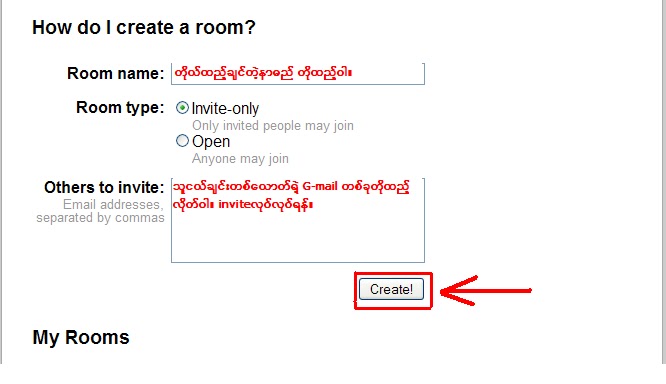
 ေနာက္တစ္ဆင့္အေနနဲ့" How to create a room"ေအာက္မွာရွိတဲ့ "Create a new room"ဆိုတဲ့ buttom ေလးကို
ထပ္နွိပ္ပါ။
                                                                          
                ကဲ......Chatroom ေလးစလုပ္ပါမယ္။Room name မွာ ကိုယ္ေပးခ်င္တဲ့ ကိုယ္ရဲ့ Group နာမည္ေလး
ေပးလိုက္ပါ။Room Type မွာေတာ့ နွစ္မ်ိဳးေပးထားပါတယ္။"invite only"ကိုေရြးေပးထားမယ္ဆိုရင္ Adim က
အပ္ထားတဲ့ သူေတြပဲ အပ္လို့၇မွာျဖစ္ပါတယ္။"Open"ကိုေရြးမယ္ဆိုရင္ေတာ့ ဘယ္သူမဆိုအပ္ျပီးခ်က္လို့ရပါ
တယ္။
                                                                 
        Other to invite ထဲမွာ သူငယ္ခ်င္းတစ္ေယာက္ေယာက္ရဲ့ G-mail account ကို အပ္ျပီး ေနာက္ဆံုးအဆင့္
အေနနဲ့ "Create" ကိုနွိပ္လိုက္ပါ။သင့္ရဲ့"group chat room"ေလးျပဳလုပ္ျပီးသြားပါျပီ။ကိုယ္အပ္တဲ့သူက လက္ခံ
ရင္စခ်က္လို့ရပါျပီ။ကိုယ့္ရဲ့ "G-talk"မွာလဲrequestလာလုပ္ပါလိမ့္မယ္။လက္ခံလိုက္ပါ။ကိုယ္chatroom ျပဳလုပ္
ျပီးျပီဆိုရင္ေတာ့ Sign out ျပန္လုပ္ခဲ့ပါ။ေနာက္Chat room နဲ့ပတ္သတ္ျပီးျပန္ျပင္ခ်င္ရင္ေတာ့ ဆိုဒ္္ေလးကိုျပန္
သြားျပီးျပန္ျပင္နိုင္ပါတယ္။သူက"Group Chat Room"ဆိုေတာ့ Commands ေလးေတြနဲ့ေျပာျပီးသံုးရမွာပါ။
အသံုး၀င္တဲ့ Commands တခ်ိဳ့ ကိုလဲ တင္ေပးလိုက္ပါတယ္။စမ္းၾကည့္ၾကေပ့ါ။

  • /leave - leave the room
  • /list [filter] - show members of room, optionally filtered to only matching members
  • /help - shows this
  • /alias name - rename yourself to 'name'
  • /score target - see the score of 'target' in plusplusbot
  • /reasons target - see why target's score was changed
  • /me - describe what you're doing in the third person
  • /share http://example.com/ [annotation] - shares a URL with the room
  • /inviteonly - Set the room to invite-only
  • /togglelogging - Enable or disable logging for a room.
  • /invite email1@foo.com, email2@bar.com ... - Invite a list of email addresses to this room
  • /kick - Remove a user or invitation from this room
  • /status - show what room you're in
  • /summon - summons a person in the room by sending them an email.
  • /undo - undo the pluspluses and minusminuses from your last message
  • /graph-score ... - prints a link to a graph of the changes to up to three targets' scores.
  • /snooze (20s|45m|1h|2d) - snooze for a specified amount of time in seconds, minutes, hours, or days.
  • /bug - returns a link to a pre-populated form to file a bug.
  • search and replace handler - use s/foo/bar to replace foo with bar
  • plusplusbot: handles ++'s and --'s
            သူငယ္ခ်င္းအားလံုးအဆင္ေျပၾကပါေစ....        တတ္လို့လဲမဟုတ္ပါဘူးလို့ အၾကိမ္ၾကိမ္ေျပာပါရေစ။ကိုယ္သိသမွ်ကို မသိေသးတဲ့သူငယ္ခ်င္းမ်ားသိ
ေစလိုျခင္းေၾကာင့္ပို့စ္ေလးကုိတင္လိုက္ရျခင္းျဖစ္ပါတယ္။ထို့ေၾကာင့္အမွားမ်ားပါခဲ့ စာဖတ္သူမ်ားနားလည္
ေပးေစခ်င္ပါသည္။       
               သူငယ္ခ်င္းအားလံုးအဆင္ေျပၾကပါေစ.....ေလးစားစြာျဖင့္;